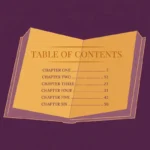
The table of contents is the map of your print book. It is often the first page a reader actually reads: they open the book, scan the chapter titles, and decide if the journey is worth taking. A clean, accurate contents page quietly signals a professional book; a sloppy one — wrong page numbers, missing chapters, hand-typed dots wandering across the page — tells the reader the interior was never really finished.
Formatting a table of contents for a print book is not difficult, but it is precise. Every entry must match its chapter heading word for word, every page number must match the printed folio, and the whole page must be built only after the book’s pagination is final. Here is how to format a table of contents in 2026: what belongs in the page and what stays out, dot leaders and right-aligned page numbers, Word’s automatic TOC field and InDesign’s TOC styles, print vs Kindle TOCs, and the mistakes that make contents pages look amateur.
Quick answer: To format a table of contents for a print book in 2026, list every front-matter section, chapter, and back-matter section in reading order; print each entry’s title exactly as it appears on its chapter opening; align page numbers to the right margin with dot leaders; indent entries by hierarchy (parts, then chapters, then sections); build the page only after final pagination using Word’s automatic TOC field or InDesign’s TOC styles; and regenerate it after every edit.
In this guide
- What a Print Table of Contents Is — and Where It Sits
- What to Include — and What to Leave Out
- Every Entry Must Match Its Chapter Heading Exactly
- Dot Leaders and Right-Aligned Page Numbers
- Hierarchy: Parts, Chapters, and Sections
- When to Build: Only After Final Pagination
- How to Format a Table of Contents in Microsoft Word
- How to Format a Table of Contents in InDesign
- Print TOC vs Kindle TOC: What Changes
- Updating Your Table of Contents After Edits
- Common Table of Contents Mistakes
- Frequently Asked Questions
- Conclusion: A Map Readers Can Trust
What a Print Table of Contents Is — and Where It Sits
A table of contents (TOC) is a structured list of a book’s sections with the page number where each one begins. In print, the page number is the whole point: unlike an ebook, where a tap jumps straight to the chapter, a print reader physically turns to a page, so the TOC must land them exactly where it promises.
The contents page sits near the front, usually right after the dedication and epigraph and before the foreword, preface, or introduction. It carries a folio like every other page, usually in roman numerals, and never gets a chapter-style ornament — the words “Contents” or “Table of Contents” in the book’s normal heading style are enough. Most books number front matter with lowercase roman numerals (i, ii, iii) and switch to arabic numerals at chapter one; the TOC must mirror that scheme exactly.
What to Include — and What to Leave Out
A print TOC includes the sections readers need to find: the foreword, preface, or introduction; every numbered part and chapter; and every back-matter section such as the appendix, notes, glossary, bibliography, index, and about the author. For more on how these sections fit together, see our guide to front matter and back matter for a print book. If your book has parts, list each part title as its own entry above its chapters. In nonfiction you may also list chapter-level subheads indented beneath their chapters — standard for textbooks and manuals, but skip them for novels and memoirs.
Several pages must never appear in the contents. Leave out the half-title, the title page, the copyright page, the dedication, and the epigraph: these are ceremonial pages, and listing them makes the book look self-conscious. The acknowledgments usually sit in the back matter and do earn an entry; the dedication does not.
Every Entry Must Match Its Chapter Heading Exactly
The single most important rule of contents formatting is exact matching: the entry on the contents page must read exactly the way the heading reads on the chapter opening page — same words, same capitalization, same punctuation. If the chapter opening says “The Night the River Rose,” the TOC entry cannot say “Night the River Rose.” Readers notice the mismatch.
This is why experienced formatters never type the TOC by hand. When you format a table of contents using Word’s automatic TOC field or InDesign’s TOC feature, the entries are pulled directly from the styled headings in the manuscript, so matching is automatic — a last-minute chapter rename cannot leave the contents page behind.
Dot Leaders and Right-Aligned Page Numbers
Dot leaders are the row of dots that guides the reader’s eye from an entry title across the page to its page number. They are not typed by hand. In Word, set a right-aligned tab stop at the right margin, choose the dot-leader option, and type a single tab after each entry. In InDesign, the same effect comes from a right-indent tab with a leader character defined in the tab ruler — enter the dots once as the leader, and every entry follows.
Page numbers sit flush with the right margin, never beside the entry title. Right alignment turns the numbers into a tidy column a reader can scan at speed. Use the same typeface and size for the numbers as for the entries, and give each entry 2 to 4 points of space after it so the page breathes, with part titles carrying more space above them.
Hierarchy: Parts, Chapters, and Sections
A flat list works for a simple novel, but most books have structure worth showing. Part titles sit at the left margin, often in a slightly larger or bolder style than the chapter entries. Chapter entries indent by about one em space. In nonfiction, a third level of chapter subheads (A-heads) may appear, indented a second em beneath their chapters. Never go deeper than three levels.
In Word’s automatic TOC, these levels come from the heading styles — Heading 1 becomes level one, Heading 2 becomes level two — so the indentation maps to the book’s real structure automatically. In InDesign, you assign each paragraph style a TOC level when you build the TOC style. Either way, the contents page should mirror the book’s structure, never invent a hierarchy the book itself does not have.
When to Build: Only After Final Pagination
Format the table of contents only after the book’s pagination is final. Page numbers shift constantly during layout — every font change, trimmed paragraph, and added image reflows the text and moves chapter openings to new pages. A TOC built mid-layout is obsolete before the proof arrives.
“Final pagination” means the trim size is locked, margins and gutter are set, fonts and sizes are chosen, images are placed, and the text has had its last substantive edit. This matters most for print-on-demand: KDP print books are printed from a fixed PDF, so a wrong page number in your file becomes a wrong page number in every copy. Treat the TOC as one of the last pages you finalize.
How to Format a Table of Contents in Microsoft Word
Most self-published authors will format a table of contents in Microsoft Word, and Word’s automatic TOC field does nearly everything right if you set it up properly. The foundation is styles: every chapter title must use a real heading style (Heading 1), not just bold and a bigger font; part titles and subheads use Heading 2 and Heading 3. The TOC field reads these styles to build the entries, so if a chapter heading is not styled, it will not appear — which is exactly how you find unstylized headings before they reach print.
Insert the field from the References tab: Table of Contents, then Custom Table of Contents. Set the tab leader to the dotted option, confirm that page numbers are right-aligned, and trim the heading levels to what your book actually uses — two for most novels, three for structured nonfiction. To update it, right-click the TOC, choose Update Field, then Update entire table, and Word rebuilds every entry and page number from the current document. If a figure caption suddenly appears in the TOC, a caption style was accidentally based on a heading style — fix the style, not the TOC.
How to Format a Table of Contents in InDesign
InDesign’s TOC engine is the professional standard for print books, and it works on the same principle: styled paragraphs in, structured contents page out. Use dedicated paragraph styles for every chapter title, part title, and subhead — never local formatting. Then open Layout, choose Table of Contents, and add your styles to the Include list with their TOC levels. Define a TOC style for the page itself: a heading style, entry styles for each level (indentation, spacing, tab stops with dot leaders), and a right-indent tab at the right margin.
Save this as a named TOC style, because you will regenerate the page many times. When the pagination shifts, select the TOC text frame and choose Layout, Update Table of Contents — InDesign rebuilds the entries from the styled paragraphs and drops the new page into the same frame. Keep the TOC frame in the page flow so page shifts do not orphan it, and regenerate immediately before your final export.
Print TOC vs Kindle TOC: What Changes
A print table of contents and a Kindle table of contents serve the same reader but play by different rules. In print, page numbers are the navigation: each entry must carry the exact page where its section begins. In a reflowable Kindle ebook, page numbers are meaningless — the text reflows to every screen size — so the ebook TOC carries no page numbers at all. Instead, each entry is a hyperlink that jumps to its chapter.
Amazon’s Kindle pipeline reads the ebook’s NCX file and the HTML navigation document to build its own Go-To menu. Our Kindle Create formatting guide explains how to set up that navigation so Amazon’s converter builds a clean ebook TOC. The key point for print authors: build the print TOC and the ebook TOC from the same styled headings but format them separately — page numbers and dot leaders for print, hyperlinked entries for Kindle.
And note the KDP print quirk: Amazon paginates the uploaded PDF exactly as uploaded, so generate the TOC from the same file you will upload, and check the numbers against the print previewer’s thumbnails before approving your proof.
Updating Your Table of Contents After Edits
A table of contents is a snapshot of pagination, and pagination never stands still. Add a paragraph to chapter three, trim a sentence from chapter seven, replace an image — the text reflows and every page number after the change shifts. Regenerate the TOC after every round of edits, and especially after proof corrections, which arrive late and touch many pages.
Build a simple routine: update the TOC, then spot-check five or six entries against the chapter openings — the first chapter, one in the middle, the last chapter, and each part title. Remember the pages around the TOC too: adding or removing entries can shift front-matter pagination and move chapter one, changing the very numbers the TOC prints. When that happens, update the field twice — once after the edit, and once more after the TOC itself settles.
Common Table of Contents Mistakes
Most bad contents pages fail in the same handful of ways, and all of them are avoidable.
Hand-typed page numbers. The classic self-publishing error: typing “Chapter One ………. 1” with manually tapped periods and a guessed number — the dots wander and the numbers drift within a week of edits. Use a real tab stop with a dot leader and an automatic TOC field.
Mismatched titles. The TOC says “The Storm” and the chapter opening says “The Gathering Storm.” Generate entries from styled headings so the wording is identical by construction.
Building the TOC before the layout is final. Contents pages built during drafting are wrong by definition. Treat the TOC as a late-stage page, built only after final pagination.
Listing everything. Dedications, epigraphs, half-titles, and copyright pages do not belong on the contents page. Include only sections a reader would look up — foreword and preface, chapters and parts, appendix and notes, glossary, index, about the author. For the back-matter sections this affects, our appendix and glossary formatting guide covers how those pages should be structured in both formats.
Wrong page-number style for front matter. If your foreword sits on page vii in roman numerals but the TOC prints “7,” the scheme is broken. Mirror the book’s actual numbering on the contents page.
Forgetting the ebook needs a different TOC. Reusing the print TOC verbatim in a Kindle file leaves dead page numbers pointing at nothing. Format the ebook TOC as hyperlinked entries with no page numbers, built from the same headings.
Frequently Asked Questions
Conclusion: A Map Readers Can Trust
A well-formatted table of contents does its job invisibly: the reader glances at it, finds the chapter, turns to the right page, and never thinks about the page that got them there. That invisibility is the achievement, and it comes from a short list of disciplines: include only what readers need to find, match every entry to its heading exactly, align page numbers right with dot leaders, show the hierarchy through indentation, build the page only after final pagination, and update it after every edit.
Do that, and your contents page becomes what it should be: a quiet promise that the rest of the book is finished with the same care.
Get a contents page that never sends a reader to the wrong chapter
ArrowUpz builds print tables of contents to the trade standard: exact entry-to-heading matching, right-aligned page numbers with true dot leaders, part and chapter hierarchy, front-matter roman numerals handled correctly, and a final regenerate against your paginated interior — so every number points where it promises.
Basic Formatting — $97 per book
Professional Formatting — $147 per book
Premium Formatting — custom quote