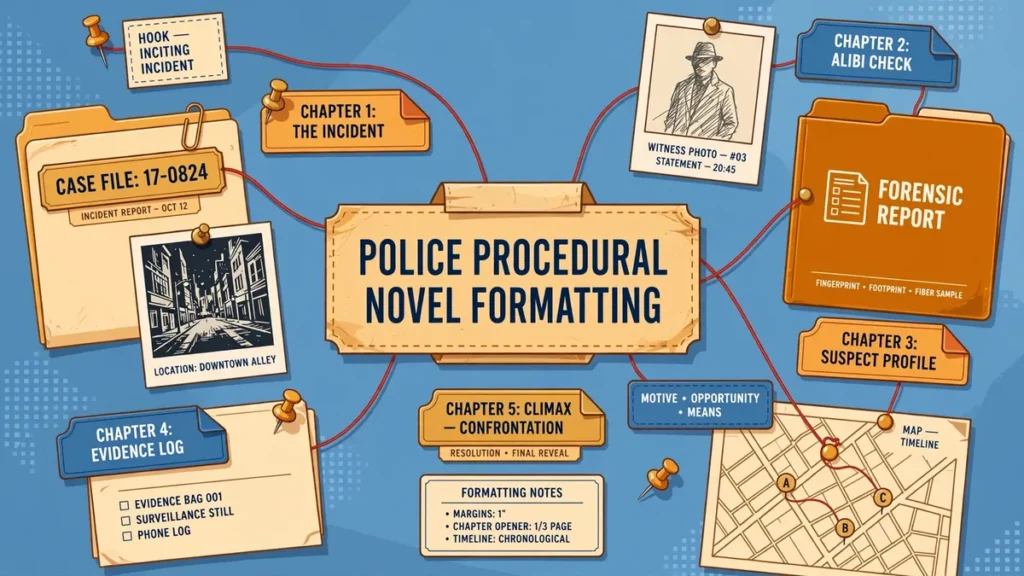
You have written the book. You have edited it, proofread it, and maybe hired a cover designer. But one final step separates a professional publication from something that looks like a school project: formatting.
Readers rarely notice good formatting. They just feel it. Pages breathe, chapters flow, and nothing pulls them out of the story. Bad formatting does the opposite. A lone word dangling at the top of a page, headings that change size from chapter to chapter, text vanishing into the spine – these tiny signals tell a reader the book was not made by a professional. In 2026, self-published authors compete with traditional publishers on the same shelves, and that impression matters.
The good news: nearly every mistake below has a simple fix, whether you work in Word, Vellum, Atticus, or hire a professional.
Quick answer: Most amateur-looking books suffer from the same handful of fixable mistakes: inconsistent margins, wrong fonts, bad line spacing, widows and orphans, and unembedded fonts. This guide walks through 15 of them with exact fixes for Word, Vellum, and Atticus — so your book looks professionally formatted in both print and eBook.
In this guide
- 1. Widows and Orphans
- 2. Inconsistent Heading Styles
- 3. Wrong Margins with No Gutter Allowance
- 4. Faux Bold and Faux Italics
- 5. Rivers of White Space
- 6. Bad Hyphenation
- 7. Missing Running Heads and Folios
- 8. An Unlinked or Broken Table of Contents
- 9. Inconsistent Scene-Break Markers
- 10. Front Matter in the Wrong Order
- 11. Copyright Page Errors
- 12. Fonts Not Embedded in the PDF
- 13. Low-Resolution Images
- 14. No Bleed on the Print PDF
- 15. Using One Single File for Both Print and eBook
- Mistake, Symptom, and Fix at a Glance
- Frequently Asked Questions
- Conclusion
Mistake 1: Widows and Orphans
A widow is a single line stranded at the top of a page, usually the last line of a paragraph separated from the rest. An orphan is a single line left alone at the bottom. Readers notice them even without knowing the terms. A page that opens with one lonely word looks careless, like the book was never proofed.
Fix: In Word, open the Paragraph dialog, go to the Line and Page Breaks tab, and check “Widow/Orphan control.” For stubborn cases, adjust a sentence earlier in the chapter to reflow the text. Vellum and Atticus handle this automatically, but review the final PDF anyway.
Mistake 2: Inconsistent Heading Styles
Chapter One is set in 18-point bold with generous space above it. Chapter Two is 16-point bold. Chapter Seven is somehow a different font entirely. This happens when authors format each chapter by hand instead of using styles, and the result feels patched together from different documents.
Fix: Define one proper heading style – same font, size, and spacing before and after – and apply it to every chapter title. In Vellum or Atticus, pick one chapter-heading style and use it throughout. A thumbnail-view scroll reveals any rogue heading instantly.
Mistake 3: Wrong Margins with No Gutter Allowance
The gutter is the inner margin where pages meet the spine. Many first-time formatters set equal margins all around, so text curves into the binding and becomes hard to read. Others set margins so wide the book looks like a pamphlet.
Fix: Use mirror margins with an inside margin sized to your page count. Amazon KDP’s guidelines scale it by book length: 0.375″ for 24–150 pages, 0.5″ for 151–300, 0.625″ for 301–500, 0.75″ for 501–700, and 0.875″ for 701–828 pages. Outside margins should be at least 0.25″ (0.375″ with bleed). In Word: Layout, Margins, Custom Margins, with “Mirror margins” selected.
Mistake 4: Faux Bold and Faux Italics
When you select text in Word and hit Ctrl+B or Ctrl+I, Word sometimes does not use the font’s true bold or italic design. Instead it mathematically thickens or slants the regular characters. These faux versions are heavier, blurrier, and subtly wrong.
Fix: Install the complete font family – regular, italic, bold, bold italic – as separate files, and apply the actual bold or italic face. If your font has no true italic, choose a different font rather than letting software fake it.
Mistake 5: Rivers of White Space
A river is a winding vertical channel of white space that appears when word spaces accidentally line up across several consecutive lines of justified text. Your eye follows the gap down the page instead of reading the words.
Fix: Adjust hyphenation and word spacing so the gaps break up. Turn on automatic hyphenation with a sensible hyphenation zone, tweak the paragraph’s word spacing, or rewrite a line to change where breaks fall. There is no automatic fix for rivers, which is why hand-fixing them signals a professional job.
Mistake 6: Bad Hyphenation
Hyphenation done well is invisible; done badly, it is unforgettable. Watch for hyphen ladders (three or more consecutive lines ending in hyphens), split proper names, words broken after two letters, and the same word hyphenated differently on different pages. Turning hyphenation off entirely is no better – it creates huge uneven gaps in justified text.
Fix: In Word, enable automatic hyphenation but set limits: do not hyphenate ALL CAPS, require at least three characters before and after the hyphen, and cap consecutive hyphenated lines at two. Then do a manual pass for awkward breaks.
Mistake 7: Missing Running Heads and Folios
Running heads are the small lines at the top of each page – usually the book title on left pages, the chapter title on right pages. Folios are the page numbers. Many self-published books have neither, or show headers on pages that should be clean, like chapter openers, or carry a previous chapter’s title for pages.
Fix: In Word, use section breaks between chapters, set up different headers per section, and suppress headers on chapter-opening pages. Keep page numbers continuous through the body matter. In Vellum and Atticus, headers come from the book style – just confirm chapter titles update correctly in every section.
Mistake 8: An Unlinked or Broken Table of Contents
In eBooks, the table of contents must be a navigational TOC – the one readers open from the Kindle menu – not just a typed list of chapters. We regularly see eBooks where TOC entries are plain text that goes nowhere, links that jump to the wrong location, or a print TOC that was never converted into a linked eBook TOC.
Fix: Build the TOC from real heading styles so links generate automatically. In Word, use References, Table of Contents, with each entry linked to its heading. Verify the NCX/nav TOC separately from any printed contents page – they are two different things. Test every link in Kindle Previewer before publishing.
Mistake 9: Inconsistent Scene-Break Markers
Scene breaks come in many forms: three asterisks, a centered hash mark, a decorative glyph, or plain extra space. The mistake is mixing them – asterisks in chapter two, a blank gap in chapter five, a fleuron in chapter nine. Worst of all is a bare blank line, which can vanish at a page break and leave readers confused about the scene change.
Fix: Pick one marker – commonly a centered * * * or a simple ornamental glyph – and use it for every scene break. Never rely on an empty paragraph alone. Use a dedicated paragraph style so spacing is identical, and check that no marker hides at a page break.
Mistake 10: Front Matter in the Wrong Order
Front matter follows a strict traditional order: half title, title page, copyright page, dedication, epigraph, table of contents, foreword or preface, acknowledgments. Many self-published books shuffle this – dedication before the title page, copyright page at the back, contents ahead of the copyright page.
Fix: Arrange front matter in the standard order above. Keep these pages clean: no running heads or visible folios on the half title, title page, copyright page, or dedication.
Mistake 11: Copyright Page Errors
The copyright page carries your legal and bibliographic information, and errors here are painfully visible: the wrong year, a missing “All rights reserved” statement, no ISBN or the wrong edition’s ISBN, publisher name inconsistencies.
Fix: Set the copyright page in a small, clean size (8 to 10 point) and include the essentials: copyright notice with the correct year and holder, edition statement, the ISBN for that specific edition, publisher name, and design credits. Double-check the ISBN matches the edition you are publishing – the paperback ISBN does not belong on the eBook copyright page.
Mistake 12: Fonts Not Embedded in the PDF
Every font in a print PDF must be embedded – the font data travels inside the file. If not, the printer substitutes its own fonts, and your Garamond can come back with different spacing, missing characters, or broken italics. KDP and IngramSpark both require embedded fonts.
Fix: Export with font embedding and subsetting turned on. In Word, go to File, Options, Save, and check “Embed fonts in the file” before exporting. Then open the PDF in Adobe Acrobat Reader, check File, Properties, Fonts, and confirm every font says “Embedded” or “Embedded Subset.”
Mistake 13: Low-Resolution Images
Print images need at least 300 DPI at their final printed size. A photo that looks fine on screen at 72 DPI prints as a blurry, pixelated mess. This is epidemic in books with charts, screenshots, or author photos pulled from websites.
Fix: Check every image’s effective resolution at its placed size. An image 1200 pixels wide printed at 4 inches is exactly 300 DPI; printed at 6 inches, it drops to 200 DPI and looks soft. Replace anything below 300 DPI with a higher-resolution source.
Mistake 14: No Bleed on the Print PDF
Bleed is the extra printed area extending past the trim edge, so images reaching the page edge do not end up with a thin white sliver after trimming. Authors who export a PDF with no bleed get hairline white edges on every full-bleed page.
Fix: KDP and IngramSpark require 0.125″ (3 mm) of bleed on every side. Set your document page size to include it: a 6 x 9″ book becomes a 6.125 x 9.25″ PDF, with outside margins of at least 0.375″. Extend any edge-touching artwork the full 0.125″ past the trim line.
Mistake 15: Using One Single File for Both Print and eBook
Print is fixed – you control every line break and margin. eBooks are reflowable – the reader controls font, size, and device. Authors who upload their print PDF as their eBook end up with forced page breaks, stranded headers, and page numbers baked into the text.
Fix: Produce two separate files from the start. The print file is a fixed-layout PDF with full typographic control. The eBook is a reflowable EPUB built from clean, styled source – no manual page breaks, no fixed headers. Vellum and Atticus generate both correctly from one source. Never upload a print PDF as an eBook.
Mistake, Symptom, and Fix at a Glance
Use this table as a pre-publish checklist. It covers the most visible mistakes, what a reader actually notices, and the fastest fix for each.
Frequently Asked Questions
Conclusion: Formatting Is the Suit Your Book Wears to the Interview
Your manuscript may be brilliant, but readers judge the package before they read a word. Every widow, inconsistent heading, and swallowed margin quietly tells a potential reader the book was not finished properly – and with millions of competing titles, readers have no reason to give an amateur-looking book the benefit of the doubt.
None of these fifteen mistakes is hard to fix: most take minutes with the right settings, the rest one careful final review. Work through the checklist above before you publish, and your book will stand next to traditionally published titles without apology.
Get your book formatted right the first time
Skip the trial and error. ArrowUpz delivers a print-ready PDF and a reflowable EPUB with matched styling — checked against KDP, IngramSpark, and Barnes & Noble Press requirements before delivery.
Basic Formatting — $97 per book
Professional Formatting — $147 per book
Premium Formatting — custom quote